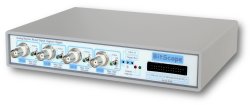
BitScope Waveform Meter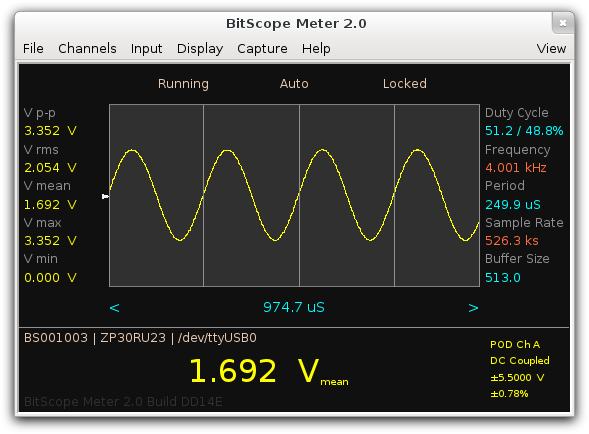 Automatic Oscilloscope and Waveform Analysis for BitScope
BitScope Meter is a scope, AC/DC voltmeter and frequency meter in an easy to use application. 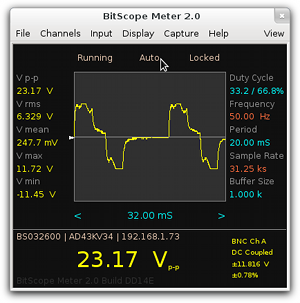 It's like a waveform generator in reverse. Plug-in any waveform and Meter will lock on and display it while simultaneously reporting waveform parameters in realtime. Features and benefits include:
Meter is an ideal tool to quickly view and measure AC/DC signals and voltages. There are no complicated parameters, just connect the signal and view the results. Simple Point & Click OperationMeter runs in a single window divided into three sections as shown at the top of this page.
The control panel can be hidden to optimize the display to view just the waveform and parameters. Operation is automatic, just click the RUN button or the spacebar on the keyboard to start. Click on any parameter around the waveform display to select it to have focus below the display. 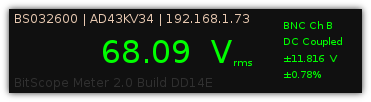 The focus parameter display uses 4 digits precision and a moving decimal point, familiar to anyone who has used a digital multimeter or frequency meter. Above the focus parameter is information about the connected BitScope and below it the Meter version. To the right are the channel selection, AC/DC coupling and signal source widgets which are changed with mouse clicks. Advanced controls and application configuration options are available via the menus at the top of the main window and almost all operations have keyboard short-cuts available. Online help and a user guide is built-in. 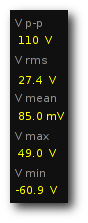 Convenient Voltage MeasurementMeter measures and reports five waveform voltages automatically:
Meter continuously measures these voltages and adjusts BitScope's input ranges and voltage scaling to optimize the measurements and maintain a consistent view of the waveform on the display. A ground reference can also be displayed, especially useful for waveforms sitting on DC offsets, and probe scaling can be applied when using attenuating oscilloscope probes. Sophisticated Frequency DetectionWhile Meter is very easy to use, internally it employs some sophisticated analysis techniques to makes its measurements, especially when measuring waveform periods and frequencies. Most frequency meters simply count zero crossings per unit time. This works for simple waveforms but fails for many real-world signals, especially in data driven mixed signal environments or when looking at waveforms comprising more than one frequency. In contrast Meter employs a powerful autocorrelation detector which can lock on to different frequencies in the one signal and even find frequencies in a waveform which is not obviously periodic. 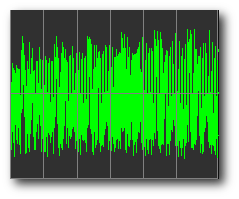 [1] Periodic Psuedo Random Waveform 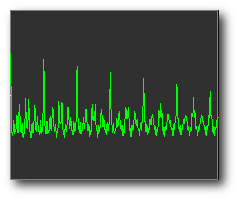 [2] Waveform Detector Function For example, waveform [1] is a digitally generated "noise" signal displayed by Meter. 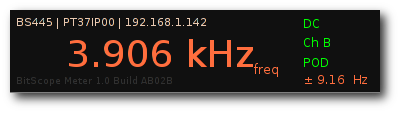 [3] Waveform Frequency Overlaying the signal is a timing grid showing that it is not noise at all but is instead a periodic waveform. The detector function [2] peaks indicate the waveform periods and the calculated frequency is reported in the measurement panel [4] as 3.906 kHz with about ±10Hz precision (worst case). Being digitally generated, this signal also has a much higher (clock) frequency embedded within it and Meter can be used to measure this frequency too. 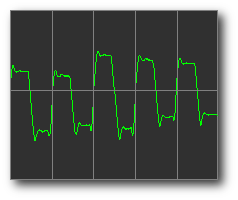 [4] Embedded Clock Signal 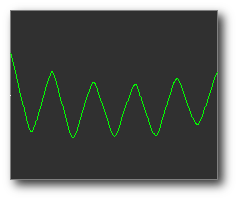 [5] Clock Detector Function Waveform [4] is from the same signal but now locked on the much higher clock component of the waveform. Again the timing grid overlays the waveform showing the waveform periods and this time the waveform periods clearly visible by inspection. 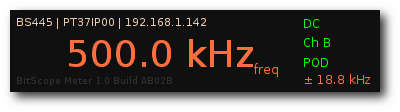 [6] Clock Frequency The detector function [5] now looks quite different but its salient feature is the row of peaks indicating the detected waveform periods as before. The reported frequency this time is 500 kHz with about ±20Hz precision. From this we can deduce that the data sequence generating the original psuedo random signal comprises 128 steps per period. The same techniques can be applied to measure multiple frequencies in many complex periodic waveforms. Of course Meter will work just as well with very simple waveforms too ! Advanced User ControlsIn normal usage Meter operates without the need for any special setup or configuration but sometimes it may be necessary tweak some settings to optimize your measurements. 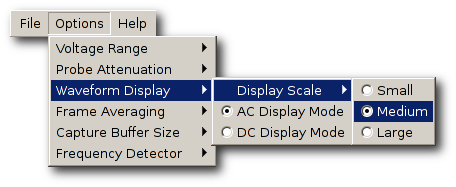 The Options menu shown here provide access to these controls when they're needed:
The online help that come with Meter explains these controls in detail. Multi-Application OperationMeter is designed to be used stand-alone or as a partner application for BitScope DSO. 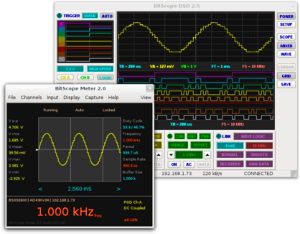 When used with BitScope DSO you can run both applications with a single BitScope at the same time using Meter to get a handle on the signal quickly and DSO to analyze it in much greater detail. Simply toggle capture between each application. Meter shares its setup, configuration and calibration settings with BitScope DSO but it can also recalibrate the operation of BitScope to suit its purposes independently of DSO if required. BitScope CompatibilityMeter supports all current BitScopes and old models back to BS300S (since 2003). Cross-platform PC CompatibilityLike most other BitScope software, Meter is cross-platform compatible with Windows 8, 7, and XP, Mac OS X and most popular Linux distributions. Related Posts |
Copyright © 2023 BitScope Designs